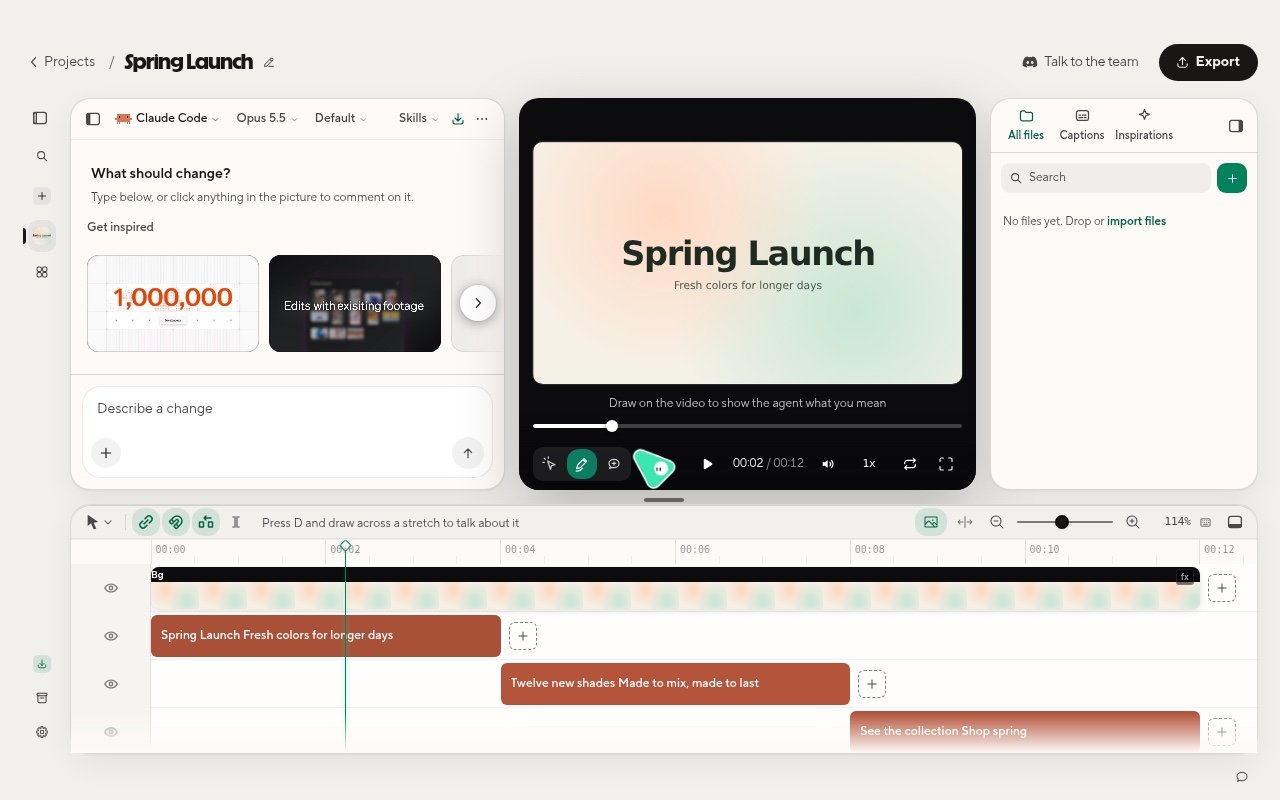
Every change starts the same way: show the agent where, say what, and send. You can type, point at something in the picture, draw over it, or leave a comment at a moment in the video.
The Spring Launch project open in the HyperFrames Studio app with the chat, the picture, and the timeline

A project: the chat on the left, the picture with its tools in the middle, and the timeline below.

Type a change

Type in the chat box, which says Describe a change, and press Enter. Type @ to add moments, media, files, or other projects to your message. While the agent is working, Enter queues your message to run next. To change that, open Settings > Agent and switch While Framey works, Send from Queue to Steer, which stops the run and starts again with your words. Picks and files always queue.

Point, draw, or comment on the picture

The tools under the picture, on the left: The picture opens with Draw. Press Escape to go back to Select. Right-click an element for quick actions such as Ask Framey, Hide, Bring to front, Replace with, and Delete. You can also draw across the timeline to talk about a stretch of the video, such as “tighten this part”.

Send several edits at once

Picks, drawings, and comments do not run on their own. Each one becomes a row in Pending video edits, up to 10. Check them, add a note for all of them, then send them as one request with the send button, for example Send 3 edits to Claude Code. Choose Edit note to change a row’s words, or Delete to drop it.

Change the timeline yourself

Some changes are faster by hand. Hover a clip on the timeline to Split it at the playhead, Delete it, or open Quick edit to change a video or audio clip’s Speed, Volume, and Fade. Drag clips to move or trim them. Right-click an empty gap for Close gap, or to ask what should fill it. The app suggests ideas that fit what plays around the gap.

Get inspired

Get inspired is a library of short example moments from real videos: Motion graphics, A-roll Cuts, and Mobile Ads. Find it on Home, in a new project’s empty chat, and in the Inspirations tab beside your files. Choose Add or Use to put a moment in your message as a reference, then say how to use it and send.

Undo

Press Cmd+Z to undo and Cmd+Shift+Z to redo (Ctrl+Z and Ctrl+Shift+Z on Linux). Each agent run in the chat also has its own Undo button.