> ## Documentation Index
> Fetch the complete documentation index at: https://hyperframes-bot-catalog-publish.mintlify.site/llms.txt
> Use this file to discover all available pages before exploring further.
# Make your first video
> Pick four parts, add your website or idea, and let the agent build your first video in the HyperFrames Studio app.
The **Create your first video** card on Home builds a launch video from four parts, each taken from a real launch
video. You pick the parts, add your website or an idea, and the agent builds one video from them.
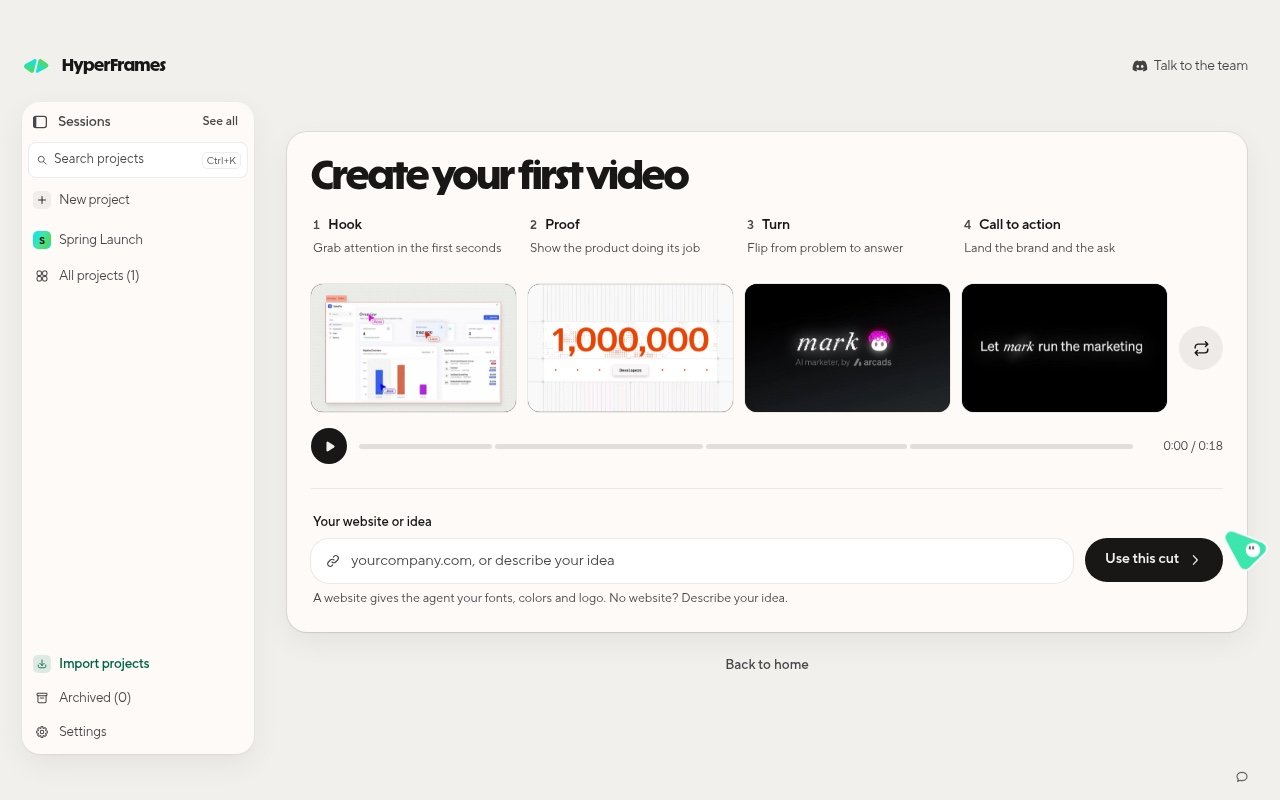 | Part | What it does |
| - | - |
| **Hook** | Grab attention in the first seconds |
| **Proof** | Show the product doing its job |
| **Turn** | Flip from problem to answer |
| **Call to action** | Land the brand and the ask |
## Build it
The card starts with one clip in each part. Use the shuffle button beside them for a new set, or hover a part to
shuffle it or browse the others.
Type your website, such as `yourcompany.com`, or describe your idea. A website gives the agent your fonts, colors
and logo.
The request goes straight to the agent. If you are not signed in or have no agent yet, the app walks you through
that first, then sends it.
## What should happen
The app creates a project for your video and the agent starts building it. On your first video, a short tour
replays how a launch video was made while yours builds, then Framey takes you to your project. In the project, the
chat shows what the agent is doing, such as **Reading files** or **Editing files**.
When the agent finishes, the video is ready to play, change, and export.
## Start from your own words instead
You do not need the card. Choose **Back to home**, type what you want in the prompt box, and press Enter. Type `@` to add files, other
projects, or media. To open the card again later, choose **Take the step by step** next to **Get inspired**.
## Related topics
* [Change your video with the agent](/studio-app/edit-with-the-agent)
* [Connect your agent](/studio-app/connect-your-agent)
This documentation is built and hosted on [Mintlify](https://mintlify.com), a developer documentation platform.
| Part | What it does |
| - | - |
| **Hook** | Grab attention in the first seconds |
| **Proof** | Show the product doing its job |
| **Turn** | Flip from problem to answer |
| **Call to action** | Land the brand and the ask |
## Build it
The card starts with one clip in each part. Use the shuffle button beside them for a new set, or hover a part to
shuffle it or browse the others.
Type your website, such as `yourcompany.com`, or describe your idea. A website gives the agent your fonts, colors
and logo.
The request goes straight to the agent. If you are not signed in or have no agent yet, the app walks you through
that first, then sends it.
## What should happen
The app creates a project for your video and the agent starts building it. On your first video, a short tour
replays how a launch video was made while yours builds, then Framey takes you to your project. In the project, the
chat shows what the agent is doing, such as **Reading files** or **Editing files**.
When the agent finishes, the video is ready to play, change, and export.
## Start from your own words instead
You do not need the card. Choose **Back to home**, type what you want in the prompt box, and press Enter. Type `@` to add files, other
projects, or media. To open the card again later, choose **Take the step by step** next to **Get inspired**.
## Related topics
* [Change your video with the agent](/studio-app/edit-with-the-agent)
* [Connect your agent](/studio-app/connect-your-agent)
This documentation is built and hosted on [Mintlify](https://mintlify.com), a developer documentation platform.