> ## Documentation Index
> Fetch the complete documentation index at: https://hyperframes-bot-catalog-publish.mintlify.site/llms.txt
> Use this file to discover all available pages before exploring further.
# Export your video
> Render a finished video file from the HyperFrames Studio app and find it in your Downloads folder.
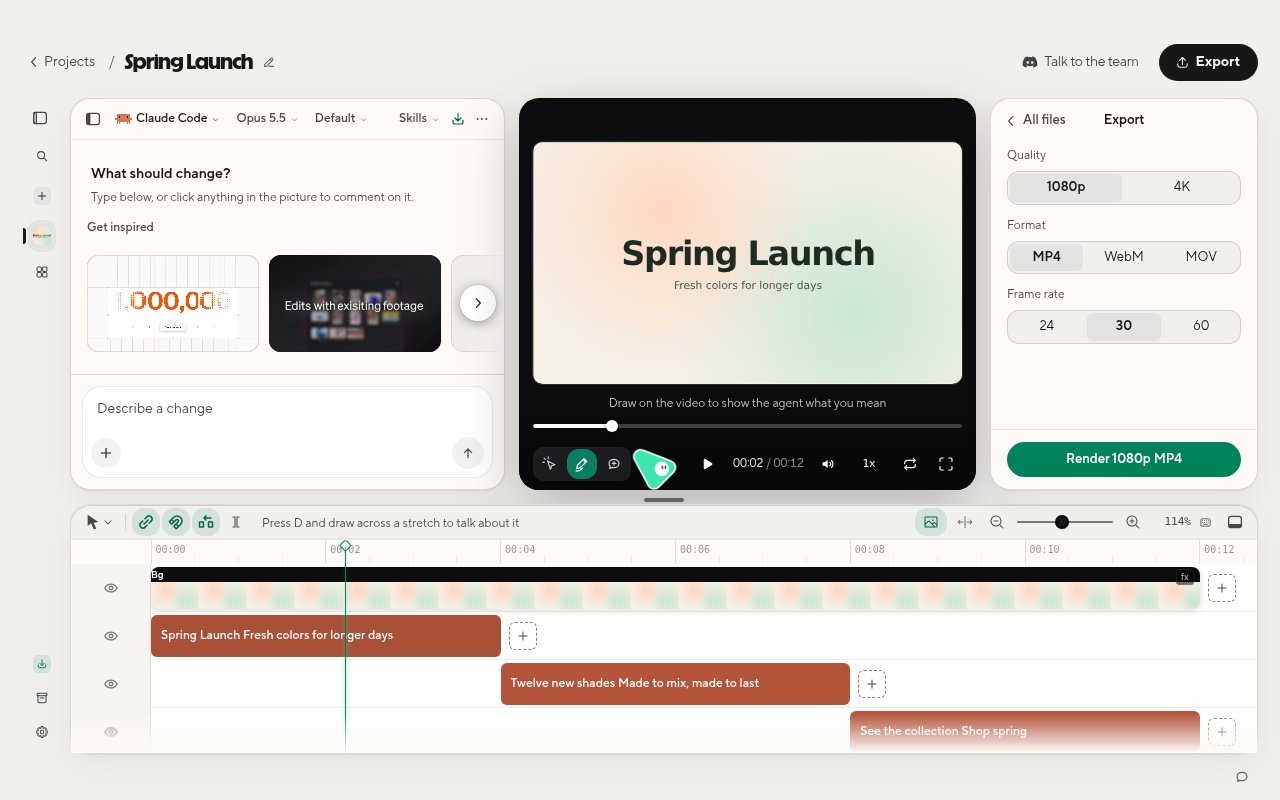
When the video is ready, choose **Export** in the project's top bar. The **Export** panel opens beside the picture.
 ## Choose the file
| Choice | Options | Default |
| - | - | - |
| **Quality** | **1080p** or **Project size**, plus **4K** when the project fits it | 1080p |
| **Format** | **MP4**, **WebM**, **MOV** | MP4 |
| **Frame rate** | 24, 30, 60 | 30 |
MP4 is the right choice for sharing and uploading. Pick another format only when the place you are sending it asks
for one.
## Render
Choose the render button, for example **Render 1080p MP4**. The panel shows **Getting ready**, then **Rendering**
with the frames done so far, then **Finishing the file**. You can close the panel and keep working; the render
continues. Choose **Cancel** to stop it.
**Export** is unavailable while the agent is building the project. Wait for the run to finish.
## Find the file
The video is saved to your **Downloads** folder, named after the project with the date and time, for example
`Spring Launch 2026-05-04 10.30.mp4`. When it is done, the panel shows **Export ready** with the file size:
* **Open video** plays it.
* **Show in Finder** (**Show in folder** on Linux) opens the folder.
Watch the exported file once from start to end before you send it.
## If the export fails
* The render fails or does not start: choose the render button again. If it keeps failing,
ask the agent to check the project, then export again.
* **The video was made but could not be saved to your Downloads folder**: free up space or check that the Downloads
folder exists, then export again.
* **HyperFrames could not start its built-in FFmpeg**: the app may be damaged. Reinstall it from
[hyperframes.dev/studio](https://hyperframes.dev/studio).
## Related topics
* [Change your video with the agent](/studio-app/edit-with-the-agent)
* [Updates and troubleshooting](/studio-app/troubleshooting)
This documentation is built and hosted on [Mintlify](https://mintlify.com), a developer documentation platform.
## Choose the file
| Choice | Options | Default |
| - | - | - |
| **Quality** | **1080p** or **Project size**, plus **4K** when the project fits it | 1080p |
| **Format** | **MP4**, **WebM**, **MOV** | MP4 |
| **Frame rate** | 24, 30, 60 | 30 |
MP4 is the right choice for sharing and uploading. Pick another format only when the place you are sending it asks
for one.
## Render
Choose the render button, for example **Render 1080p MP4**. The panel shows **Getting ready**, then **Rendering**
with the frames done so far, then **Finishing the file**. You can close the panel and keep working; the render
continues. Choose **Cancel** to stop it.
**Export** is unavailable while the agent is building the project. Wait for the run to finish.
## Find the file
The video is saved to your **Downloads** folder, named after the project with the date and time, for example
`Spring Launch 2026-05-04 10.30.mp4`. When it is done, the panel shows **Export ready** with the file size:
* **Open video** plays it.
* **Show in Finder** (**Show in folder** on Linux) opens the folder.
Watch the exported file once from start to end before you send it.
## If the export fails
* The render fails or does not start: choose the render button again. If it keeps failing,
ask the agent to check the project, then export again.
* **The video was made but could not be saved to your Downloads folder**: free up space or check that the Downloads
folder exists, then export again.
* **HyperFrames could not start its built-in FFmpeg**: the app may be damaged. Reinstall it from
[hyperframes.dev/studio](https://hyperframes.dev/studio).
## Related topics
* [Change your video with the agent](/studio-app/edit-with-the-agent)
* [Updates and troubleshooting](/studio-app/troubleshooting)
This documentation is built and hosted on [Mintlify](https://mintlify.com), a developer documentation platform.