> ## Documentation Index
> Fetch the complete documentation index at: https://hyperframes-bot-catalog-publish.mintlify.site/llms.txt
> Use this file to discover all available pages before exploring further.
# Change your video with the agent
> Type a change, point at the picture, draw, or comment, then send several edits to the agent at once.
Every change starts the same way: show the agent where, say what, and send. You can type, point at something in
the picture, draw over it, or leave a comment at a moment in the video.
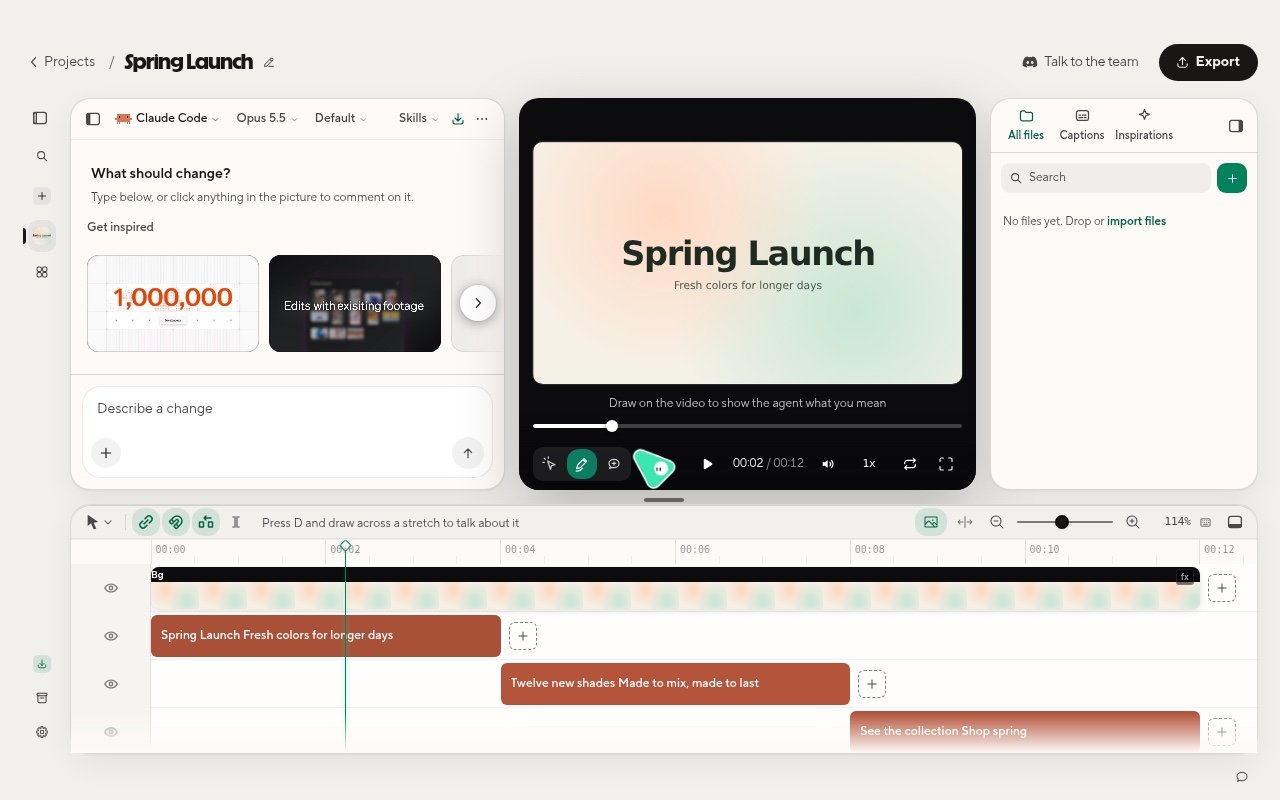 ## Type a change
Type in the chat box, which says **Describe a change**, and press Enter. Type `@` to add moments, media, files, or
other projects to your message.
While the agent is working, Enter queues your message to run next. To change that, open **Settings** > **Agent**
and switch **While Framey works, Send** from **Queue** to **Steer**, which stops the run and starts again with your
words. Picks and files always queue.
## Point, draw, or comment on the picture
The tools under the picture, on the left:
| Tool | What it does |
| - | - |
| **Select** (V) | Click an element, choose **Prompt to edit** (or press A), and describe the change. Click again to pick what contains it. |
| **Draw** (D) | Circle or mark a spot and say what should change. Several strokes become one drawing. |
| **Comment** (C) | Pin a comment to a spot and moment: **What should change here?** |
The picture opens with **Draw**. Press Escape to go back to **Select**. Right-click an element for quick actions
such as **Ask Framey**, **Hide**, **Bring to front**, **Replace with**, and **Delete**.
You can also draw across the timeline to talk about a stretch of the video, such as "tighten this part".
## Send several edits at once
Picks, drawings, and comments do not run on their own. Each one becomes a row in **Pending video edits**, up to 10.
Check them, add a note for all of them, then send them as one request with the send button, for example
**Send 3 edits to Claude Code**. Choose **Edit note** to change a row's words, or **Delete** to drop it.
## Change the timeline yourself
Some changes are faster by hand. Hover a clip on the timeline to **Split** it at the playhead, **Delete** it, or
open **Quick edit** to change a video or audio clip's **Speed**, **Volume**, and **Fade**. Drag clips to move or trim
them.
Right-click an empty gap for **Close gap**, or to ask what should fill it. The app suggests ideas that fit what
plays around the gap.
## Get inspired
**Get inspired** is a library of short example moments from real videos: **Motion graphics**, **A-roll Cuts**,
and **Mobile Ads**. Find it on Home, in a new project's empty chat, and in the **Inspirations** tab beside your files.
Choose **Add** or **Use** to put a moment in your message as a reference, then say how to use it and send.
## Undo
Press Cmd+Z to undo and Cmd+Shift+Z to redo (Ctrl+Z and Ctrl+Shift+Z on Linux). Each agent run in the chat also has its own **Undo** button.
## Related topics
* [Export and share](/studio-app/export)
* [Make your first video](/studio-app/first-video)
* [Updates and troubleshooting](/studio-app/troubleshooting)
This documentation is built and hosted on [Mintlify](https://mintlify.com), a developer documentation platform.
## Type a change
Type in the chat box, which says **Describe a change**, and press Enter. Type `@` to add moments, media, files, or
other projects to your message.
While the agent is working, Enter queues your message to run next. To change that, open **Settings** > **Agent**
and switch **While Framey works, Send** from **Queue** to **Steer**, which stops the run and starts again with your
words. Picks and files always queue.
## Point, draw, or comment on the picture
The tools under the picture, on the left:
| Tool | What it does |
| - | - |
| **Select** (V) | Click an element, choose **Prompt to edit** (or press A), and describe the change. Click again to pick what contains it. |
| **Draw** (D) | Circle or mark a spot and say what should change. Several strokes become one drawing. |
| **Comment** (C) | Pin a comment to a spot and moment: **What should change here?** |
The picture opens with **Draw**. Press Escape to go back to **Select**. Right-click an element for quick actions
such as **Ask Framey**, **Hide**, **Bring to front**, **Replace with**, and **Delete**.
You can also draw across the timeline to talk about a stretch of the video, such as "tighten this part".
## Send several edits at once
Picks, drawings, and comments do not run on their own. Each one becomes a row in **Pending video edits**, up to 10.
Check them, add a note for all of them, then send them as one request with the send button, for example
**Send 3 edits to Claude Code**. Choose **Edit note** to change a row's words, or **Delete** to drop it.
## Change the timeline yourself
Some changes are faster by hand. Hover a clip on the timeline to **Split** it at the playhead, **Delete** it, or
open **Quick edit** to change a video or audio clip's **Speed**, **Volume**, and **Fade**. Drag clips to move or trim
them.
Right-click an empty gap for **Close gap**, or to ask what should fill it. The app suggests ideas that fit what
plays around the gap.
## Get inspired
**Get inspired** is a library of short example moments from real videos: **Motion graphics**, **A-roll Cuts**,
and **Mobile Ads**. Find it on Home, in a new project's empty chat, and in the **Inspirations** tab beside your files.
Choose **Add** or **Use** to put a moment in your message as a reference, then say how to use it and send.
## Undo
Press Cmd+Z to undo and Cmd+Shift+Z to redo (Ctrl+Z and Ctrl+Shift+Z on Linux). Each agent run in the chat also has its own **Undo** button.
## Related topics
* [Export and share](/studio-app/export)
* [Make your first video](/studio-app/first-video)
* [Updates and troubleshooting](/studio-app/troubleshooting)
This documentation is built and hosted on [Mintlify](https://mintlify.com), a developer documentation platform.